• Skip to primary navigation
  • Skip to main content
  • Skip to primary sidebar

Camiel Schoonens

Product and Technology enthusiast

  • Home
  • Blog
  • Running
  • Photoblog
  • About

Tech

The Great Family Photo Purge

1 March 2026 · 1 Comment

I have 25 folders (filled with many subfolders) filled with photos from 2001 to 2026. All the folders are stored on my NAS. When I import new photos from my DSLR into Lightroom, I automatically back up the photos to my NAS drive. For pictures taken on the four iPhones in our household, I back up the images from iCloud to my NAS, usually once a year. The result of this process? There are thousands of JPEG files in these folders, and since 2023 (the year my youngest turned 12), the number of pictures we take has increased exponentially.

I’ve long wanted to clean up this digital mess by removing duplicate photos and selecting one photo from a series of photos (often from the children). The purpose of all this isn’t to save disk space; it’s to create physical photo albums for the years since we have children and are a family.

Yesterday morning, I said to myself, “At least figure out how you are going to approach this as a first step.” Spoiler: I think I did, and I’m documenting my thoughts here for future reference and for others who may deal with the same challenges.

I’ve made use of the following two MacOS apps: PhotoSweeper and ExifRenamer, and tried out this workflow on two annual folders with a combined total of a little over 3000 photos. This is my approach:

  1. Create a ‘year’ zip file of every single year folder available for backup purposes. I’ve uploaded these individual zip files to my Backblaze, my off-site S3 backup solution.
  2. Copy a single folder with all subfolders from my NAS to my desktop computer, mainly for performance reasons while processing, but also to create a ‘working folder’ without touching the files on my NAS.
  3. Have PhotoSweeper analyze the contents of the year folder and subfolders on my desktop. My desktop computer is an M4 Mac Mini, and PhotoSweeper is incredibly fast at this.
  4. Manually go through three types of compares PhotoSweeper does on the folder and its subfolders: 1. Filename and exif comparison, 2. Series comparison for images taken within one minute of each other, and 3. Having the app’s algorithm handle image comparison on my behalf by ‘looking’ at the images.
  5. Mark all the images I want to delete based on the analysis, following PhotoSweeper’s advice about which one to delete 9 out of 10 times.
  6. As I’m working on my desktop, on the copied versions of the photos, I’m letting PhotoSweeper delete all the marked photos for me.
  7. I’m now left with a cleaned-up annual folder and still lots of subfolders, but no more duplicate photos or series of photos that I need.
  8. The final processing step is to have ExifRenamer go through the folders and all the subfolders and move the individual jpeg images to a new folder, still on my desktop. While ExifRenamer moves the files, it updates the filenames based on the Exif data it reads. I name the files with the following syntax: yyyymmdd hhmmss – (Camera Name).jpg. 
  9. As a result, I end up with a cleansed annual archive of images that are sorted from A-Z in the file system. As a bonus, the filename gives me a hint at the image’s quality based on the camera name. I suspect this will come in handy once I start selecting the pictures for my printed photo album.

Default Apps – 2025

1 December 2025 ·

This is the third year I’ve been doing a Default Apps list. The categories here are based on the app categories discussed in Hemispheric Views 097 – Duel of the Defaults! podcast. I placed a 🆕 icon in every category where I changed the app compared to last year. There is also a /Defaults page available on this domain.

  • 📨 🆕 Mail Client: Apple Mail
  • 📮 Mail Server: Office365
  • 📝 🆕 Notes: Mechanical pencil and Paper (Moleskine)
  • ✅ To-Do: Things
  • 📷 iPhone Photo Shooting: Camera
  • 🟦 Photo Management: Adobe Lightroom Classic for editing and Photos for organization
  • 📆 Calendar: Fantastical Calendar
  • 📁 Cloud File Storage: iCloud Drive
  • 📖 🆕 RSS: Unread with a self-hosted FreshRSS backend.
  • 🙍🏻Contacts: Apple Contacts
  • 🌐 Browser: Safari and Edge for work
  • 💬 🆕 Chat: Messages, WhatsApp, and Signal got added to the list this year.
  • 🔖 🆕 Bookmarks: LinkAce
  • 📑 🆕 Read It Later: Things
  • 📜 Word Processing: Word
  • 📈 Spreadsheets: Excel
  • 📊 Presentations: PowerPoint
  • 🛒 Shopping Lists: Things
  • 🍴 Meal Planning: Pen and Paper
  • 💰 Budgeting and Personal Finance: Banktivity
  • 📰 News: NRC, NOS and Tweakers.net
  • 🎵 Music: Apple Music
  • 🎤 🆕 Podcasts: Castro
  • 🔐 Password Management: 1Password

Additional categories, not mentioned in the original podcast episode:

  • 🔖 Journal: Day One
  • 🚀 Launcher: Alfred
  • 🗺️ Maps: Apple Maps
  • 🔐 🆕 VPN: Self-hosted always-on VPN on my Unifi Cloud Gateway Fiber
  • 🌦️ Weather: Carrot Weather

7 November 2025 ·

These are my iPhone screens as of November 2025. The screen in the middle is the homescreen when the phone is in 'Personal' focus, and the screen to the right is my 'Work' focus setup.

As you can see, I prefer blueish colors. Wallpaper by @BasicAppleGuy.

https://camiel.schoonens.nl/2025/45889/

Planning a Melbourne and Sydney visit from 39,000 feet

6 September 2025 ·

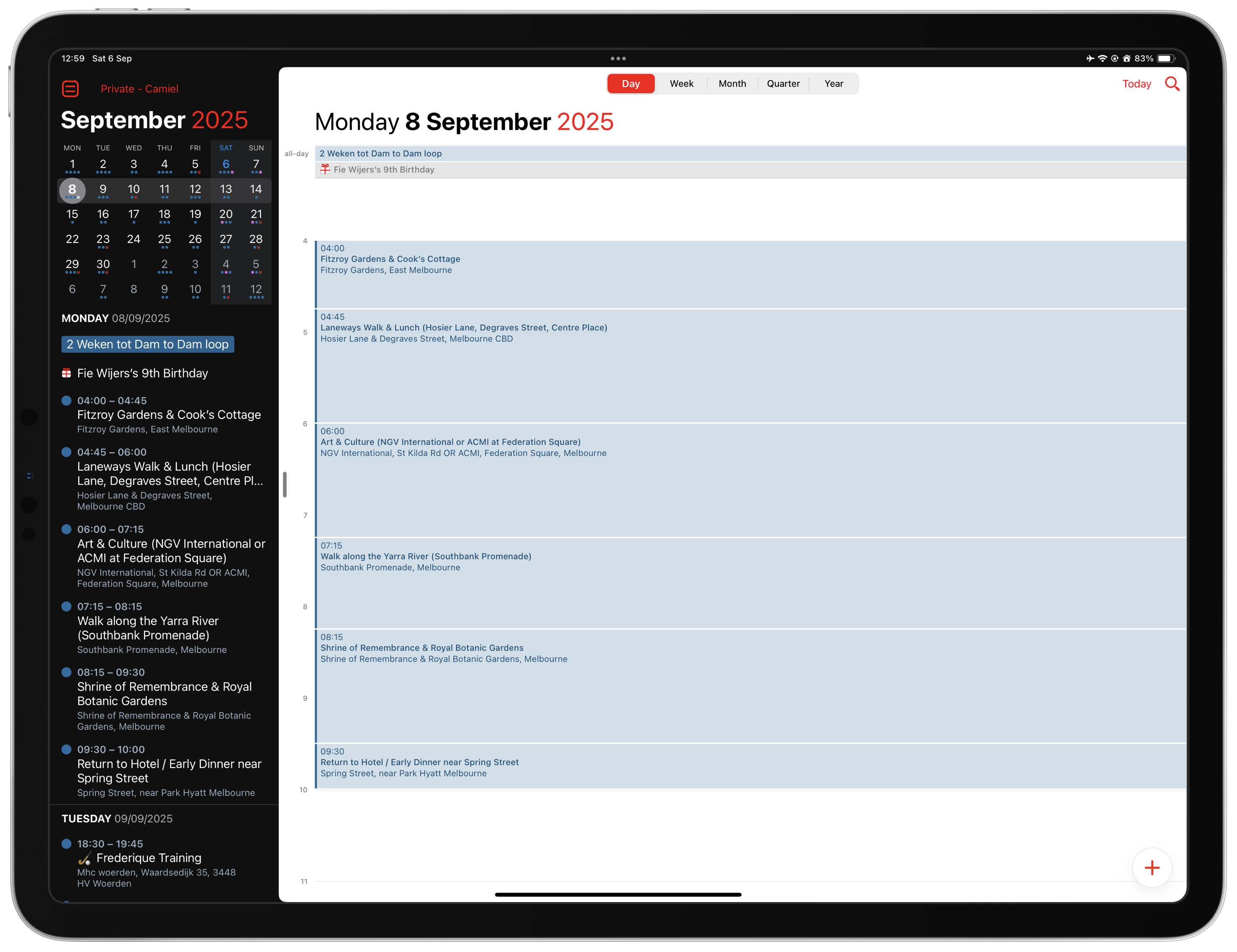
I’m on my way to Melbourne and Sydney for a week of business travel in Australia. I will have Monday afternoon off in Melbourne and Thursday afternoon and Friday morning off in Sydney. Since I’ve never been to Australia, I thought I’d ask ChatGPT for some advice on planning my afternoon visits.

While I’ve heard many people talk about creating itineraries with ChatGPT, I had never tried it myself. I find the experience magical. With a few questions and prompts, ChatGPT generated an afternoon schedule for me based on my hotel location and personal preferences. My final request was to generate an iCal file, including location information, that I could import into my calendar, which it did.

I did all of this while flying at 39,000 feet, with a super-fast, stable internet connection. Wow!

Website Update

10 May 2025 ·

I updated this website last night and made some final CSS changes to the front page this morning. I’m happy with how things have turned out. As you can see, I decided to design the front page around the topics that matter most to me: Running and Photography.

Apart from updating the design, I also updated the technology behind my site. As a result, everything posted here is automatically shared with the Fediverse. The easiest way to follow updates remains RSS, but if you prefer seeing these updates in your favorite Mastodon client, you can also follow the account @blog@camiel.schoonens.nl.

Now that the design and technology are in place, I will start structuring my content differently to make the overall browsing experience more consistent when browsing different site sections.

[Read more…] about Website Update
  • Page 1
  • Page 2
  • Go to Next Page »

Primary Sidebar

Welcome

Welcome to the personal website of Camiel Schoonens. This website is the starting point of my social interactions on the internet. Visit my /follow page to discover how to follow my updates posted here. I created this website so I would not depend on the large social networks that come and go over time.

More about me can be found on the /about page.

Categories

  • Links (17)
  • Notes (107)
    • MDiT (98)
  • Personal (168)
    • Books (16)
    • Music (74)
    • Running (68)
  • Photography (34)
  • Tech (8)
  • Travel (8)
    • Costa Rica (3)

Pages

  • Blogroll
  • Defaults
  • Explore
  • Follow
  • Podroll
  • Run log – 2026
  • Slashes
  • Uses

“Motivation is what gets you started. Habit is what keeps you going.”

  • Bluesky
  • Email
  • GitHub
  • LinkedIn
  • Mastodon
  • RSS

Camiel Schoonens · © 2026